The roar of the crowd, the iconic fight songs, the unpredictable Saturdays – college football isn't just a sport; it's a culture. For fans, the off-season wait can be agonizing, and the desire to dive into new scenarios, fantasy leagues, or custom dynasty modes is palpable. What if you could conjure up your own college football matchups, teams, or even entire roster elements with the click of a button? You absolutely can, by building your own College Football Team Generator using custom lists.
Forget relying solely on someone else's algorithms or preset options. This guide will arm you with the knowledge and tools to create your own personalized randomizer, transforming how you engage with the sport, especially with games like EA Sports College Football 25 on the horizon. Whether you're a spreadsheet wizard or a budding coder, the power of custom generation is within your grasp.
At a Glance: Your Playbook for Custom Generation
- Take Control: Learn why building your own generator offers unmatched flexibility and fun.
- Two Main Paths: Discover how to create generators using either simple spreadsheets (no code!) or basic scripting.
- Mastering Custom Lists: Understand how to structure your data for powerful, personalized randomization.
- Beyond the Basics: Explore advanced features like weighted selection and pairing elements.
- Real-World Applications: See how to use your generator for fantasy drafts, game setups, office pools, and more.
- Avoid Common Fouls: Tips to ensure your generator runs smoothly and effectively.
Why Settle for Generic? The Unrivaled Power of Your Own Generator
In the sprawling landscape of college football, uniformity is rare. Every team has its quirks, every conference its distinct flavor, and every fan base its unique rivalries. Existing random team generators, while incredibly useful for quick picks, often operate on broad, pre-defined datasets. They might offer filters for conferences like the SEC or Big Ten, but what if your fantasy league has a specific theme? What if you want to pit only historic rivalries against each other, or randomly select players for a custom draft from a pool you curated?
This is where building your own College Football Team Generator becomes not just a fun project, but a game-changer. It grants you the ultimate authority over the variables, allowing you to craft scenarios, challenges, and experiences that are perfectly tailored to your imagination. You’re not just generating random teams; you're generating your teams, your players, your specific matchups, giving you a distinct advantage whether you're setting up a new dynasty mode in EA Sports College Football 25 or running an office pool. The versatility is immense, allowing you to dive into niche interests, historical eras, or entirely fictional universes with ease.
Decoding the Core: How a Team Generator Works
At its heart, any random generator, whether it's spitting out lottery numbers or college football teams, follows a simple principle:
- Input a List: You provide a collection of items (teams, players, mascots, stadium names, uniform styles, etc.).
- Apply Randomization: The generator uses an algorithm to pick one or more items from that list without bias.
- Output Selection: The chosen item(s) are presented to you.
The magic happens in how you define that "list" and the method you use for randomization. For our purposes, we'll focus on methods that are accessible and practical for any college football fanatic, regardless of technical background.
Building Your Arsenal: Two Paths to Your Custom Generator
There are primarily two accessible routes to building your own custom college football team generator: the no-code spreadsheet approach and the slightly more technical scripting method. Both are powerful; the best choice depends on your comfort level with technology and the complexity you envision.
Path 1: The Spreadsheet Sensei – Unleashing Google Sheets or Excel
This is the go-to for anyone who wants robust functionality without writing a single line of code. Spreadsheets are incredibly versatile and user-friendly, making them perfect for managing your custom lists and performing randomization.
The Strategy:
You’ll create a master list of your desired items (teams, players, stadiums, etc.) and then use built-in functions to randomly select from that list.
Step-by-Step with Google Sheets (Excel is very similar):
- Prepare Your List:
- Open a new Google Sheet.
- In Column A, starting from A1, list every item you want to be part of your generation pool. For example:
- A1: Alabama Crimson Tide
- A2: Ohio State Buckeyes
- A3: Georgia Bulldogs
- ... and so on.
- You can create separate sheets for different types of lists (e.g.,
Teams,Players,Stadiums).
- Generate a Single Random Pick:
- In an empty cell (e.g., C1), type the following formula:
=INDEX(A:A, RANDBETWEEN(1, COUNTA(A:A))) - Let's break that down:
COUNTA(A:A): This counts all non-empty cells in Column A, effectively giving us the total number of items in your list.RANDBETWEEN(1, COUNTA(A:A)): This generates a random whole number between 1 (the first item) and the total count of your list.INDEX(A:A, ...): This function then picks the item from Column A that corresponds to the random number generated.- Every time you refresh the sheet (or change any cell), this formula will pick a new random team.
- Generate Multiple Unique Picks (for a roster or matchup):
- Generating multiple unique picks requires a slightly more advanced approach in spreadsheets, but it's totally doable. You can't just copy the above formula, as it might pick the same team twice.
- Method 1: Helper Column (For smaller lists or visual preference)
- In Column B, next to your list in Column A, add the formula
=RAND()in B1 and drag it down to the end of your list. This assigns a random decimal number to each item. - In cell C1, type
=SORTN(A:B, 5, 0, 2, FALSE). This formula does a few things: SORTN(range, n, display_option, sort_column, is_ascending)A:B: Our data range (teams and their random numbers).5: The number of unique teams you want to generate. Change this to your desired quantity.0: TellsSORTNto return only unique rows.2: Specifies that we're sorting by the second column (Column B, our random numbers).FALSE: Sorts in descending order (orTRUEfor ascending, doesn't matter for randomness here).- This will give you a list of 5 unique random teams. You'll then only look at the first column of the result.
- Method 2: Using a Script (for ultimate spreadsheet power)
- If you need truly robust multi-unique selection and want to automate button clicks, Google Apps Script (JavaScript-based) can be embedded directly into Google Sheets. This bridges the gap between spreadsheet ease and scripting power. You could write a short script to pick N unique items and even output them to a specific location with a button click. (We’ll touch more on scripting below).
Pros of the Spreadsheet Approach: - No Coding Required: Accessible to everyone.
- Visual and Intuitive: Easy to see your data and results.
- Shareable: Easily share your generator with friends via Google Sheets.
- Flexible Data Management: Simple to add, remove, or edit items in your lists.
Cons of the Spreadsheet Approach: - Less Dynamic: Generating new picks often requires manual recalculation or refreshing.
- Limited Interactivity: Can't easily create a "Generate" button without basic scripting.
- Complex Unique Selections: Formulas for multiple unique selections can get a bit long.
Path 2: The Scripting Scion – Python for the Win
For those comfortable with a little bit of code, scripting languages like Python offer immense power, flexibility, and automation. You can create a simple program that runs from your computer, generates picks, and even saves them to a file.
The Strategy:
You’ll create plain text files for your lists and write a Python script to read those files, randomly select items, and display or save the results.
Step-by-Step with Python (Basic Example):
- Set Up Your Environment:
- Install Python if you haven't already (download from python.org).
- You'll need a text editor (like VS Code, Sublime Text, or even Notepad) to write your Python script and create your list files.
- Create Your Custom List File:
- Open your text editor.
- Type each item on a new line. Save this file as
teams.txt(orplayers.txt,stadiums.txt, etc.) in the same folder where you'll save your Python script.
Alabama Crimson Tide
Ohio State Buckeyes
Georgia Bulldogs
Michigan Wolverines
Texas Longhorns
USC Trojans
- Write Your Python Script (
generator.py):
python
import random
def load_list(filename):
"""Loads items from a text file, one item per line."""
try:
with open(filename, 'r', encoding='utf-8') as f:
items = [line.strip() for line in f if line.strip()]
return items
except FileNotFoundError:
print(f"Error: {filename} not found. Please create the file.")
return []
def generate_unique_picks(item_list, quantity):
"""Generates a specified number of unique picks from a list."""
if not item_list:
return []
if quantity > len(item_list):
print(f"Warning: Requested {quantity} items, but only {len(item_list)} available. Returning all unique items.")
return random.sample(item_list, len(item_list))
return random.sample(item_list, quantity)
if name == "main":
teams_filename = "teams.txt"
all_teams = load_list(teams_filename)
if all_teams:
print("\n--- College Football Team Generator ---")
while True:
try:
num_teams_to_generate = int(input(f"How many teams do you want to generate (max {len(all_teams)})? "))
if 1 <= num_teams_to_generate <= len(all_teams):
break
else:
print(f"Please enter a number between 1 and {len(all_teams)}.")
except ValueError:
print("Invalid input. Please enter a number.")
generated_teams = generate_unique_picks(all_teams, num_teams_to_generate)
print(f"\nYour {num_teams_to_generate} randomly generated teams are:")
for i, team in enumerate(generated_teams, 1):
print(f"{i}. {team}")
print("\n-------------------------------------")
Example of saving results
save_choice = input("Do you want to save these results to a file? (yes/no): ").lower()
if save_choice == 'yes':
output_filename = "generated_teams_output.txt"
with open(output_filename, 'w', encoding='utf-8') as outfile:
for i, team in enumerate(generated_teams, 1):
outfile.write(f"{i}. {team}\n")
print(f"Results saved to {output_filename}")
4. Run Your Script:
- Open your computer's terminal or command prompt.
- Navigate to the folder where you saved
generator.pyandteams.txt. - Type
python generator.pyand press Enter. - The script will prompt you for the number of teams to generate and then display them.
Pros of the Scripting Approach: - Highly Flexible & Powerful: Can handle complex logic, larger datasets, and advanced features.
- Automation: Easily automate tasks, run in batches, or integrate with other systems.
- Portability: Scripts can be run on most operating systems with Python installed.
- Learning Opportunity: Great way to dip your toes into programming.
Cons of the Scripting Approach: - Learning Curve: Requires basic understanding of Python syntax and command-line usage.
- Setup: Requires Python installation.
- No Graphical User Interface (GUI) by default: Runs in a text-based terminal, though GUIs can be built with additional libraries.
Path 3: Leveraging Existing Platforms with Custom Uploads
While this guide focuses on building your own generator, it's worth noting that some existing online tools, like the Random College Football Team Generator mentioned in the context, offer a "Custom Mode." This mode often allows you to upload your own text file or paste a custom list directly into their interface.
This is a fantastic hybrid approach. You get the benefits of a polished web interface without needing to build one yourself, while still using your custom lists. It's an excellent way to test your list ideas quickly or if you need a quick shareable solution without delving into code or complex spreadsheet formulas for dynamic generation. Simply prepare your list as a plain text file (one item per line) and follow the platform's instructions for uploading.
Crafting Your Custom Lists: The Heart of Your Generator
The quality and creativity of your generator directly correlate with the custom lists you feed it. Think of these lists as your coaching playbook – the more detailed and strategic, the better your outcomes.
What Makes a Good Custom List?
- Specificity: Donot just list "teams"; list "ACC teams (2023 season)" or "Heisman Trophy Winners (1990-2010)."
- Consistency: Ensure each item follows the same format (e.g., "Team Name" vs. "Team Name - Conference").
- Completeness: If you're building a generator for a specific purpose, try to include all relevant items.
- Variety: Don't be afraid to create lists for different categories beyond just team names.
Ideas for Your Custom Lists: - Conference-Specific Teams:
SEC_Teams.txt,BigTen_Teams.txt,ACC_Teams.txt. Perfect for setting up rivalries or regional-only leagues. - Historic Powerhouses:
1990s_Powerhouses.txt,Undefeated_Teams.txt. Great for throwback scenarios. - Underdog Uprisings:
Never_Won_National_Championship.txt. Inspire a Cinderella story! - Player Names (for mock drafts or Road to Glory creation):
QBs_Prospects_2025.txt,Legendary_RBs.txt. You could even pull lists from scouting reports or old rosters. - Stadium Features:
Unique_Stadium_Traditions.txt,Iconic_College_Towns.txt. Generate a random "atmosphere" for your created teams. - Uniform Elements:
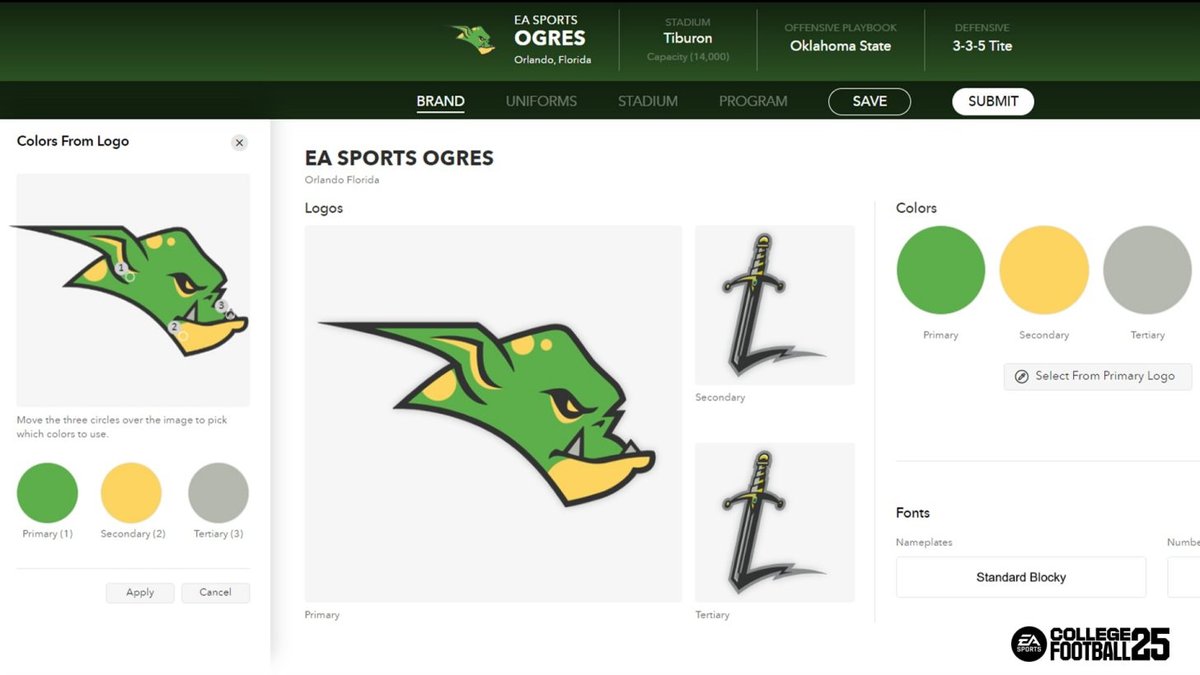
Helmet_Colors.txt,Jersey_Styles.txt,Mascot_Categories.txt. This allows for a more detailed team creation, similar to the creative options offered by the EA SPORTS™ College Football Team Builder, but with the added randomness of your selections. For example, you could generate a team with a random helmet color, a random jersey style, and a random mascot type. - Playbook Styles:
Offensive_Schemes.txt(e.g., "Air Raid," "Run-Heavy," "Option"),Defensive_Fronts.txt(e.g., "4-3," "3-4," "Nickel"). Randomly assign strategic identities. - Recruiting Dealbreakers:
Recruit_Priorities.txt(e.g., "Academics," "Location," "Playing Time"). Simulate recruiting challenges.
Formatting Your Data:
For both spreadsheet and scripting methods, plain text is king. - One item per line for simple lists (
teams.txt). - CSV (Comma-Separated Values): If you want to include multiple pieces of information about each item (e.g., "Team Name, Conference, Region").
Alabama Crimson Tide,SEC,SoutheastOhio State Buckeyes,Big Ten,Midwest- You'd then need slightly more advanced spreadsheet formulas or scripting logic to parse these columns, but it's very doable.
Beyond Basic Randomization: Adding Layers of Intelligence (Optional but Awesome)
Once you've mastered the basics, you can elevate your generator with more sophisticated logic.
- Weighted Randomization:
- Concept: Make certain items more likely to be picked than others. For example, if you want your generator to favor power-five teams, you can assign them a higher "weight."
- Spreadsheet: In a column next to your list, add a "Weight" value (e.g., SEC teams get 5, Group of 5 teams get 1). Then use more complex formulas or a script to perform weighted selection.
- Python: The
random.choices()function (Python 3.6+) is perfect for this. You provide your list and a corresponding list of weights.
python
import random
teams = ["Alabama", "Ohio State", "Boise State", "Akron"]
weights = [5, 5, 2, 1] # Alabama and Ohio State are 5x more likely than Akron
chosen_team = random.choices(teams, weights=weights, k=1)[0]
- Exclusion Lists/No Repeats:
- Concept: Ensure that once an item is picked, it can't be picked again in the same generation batch (crucial for drafting or setting up unique matchups).
- Spreadsheet: The
SORTNmethod discussed earlier handles this for unique items. - Python: The
random.sample()function is explicitly designed for picking multiple unique items from a list.
- Pairing Elements:
- Concept: Generate two related items simultaneously, like a "Team" and a "Rival," or a "Player" and their "Position."
- Spreadsheet: You could have two columns,
Team_AandTeam_B(their rival), and then use the same random selection logic across both. - Python: Load two separate lists (e.g.,
teams.txtandrivals.txt). Then, you could either pick randomly from each, or for a direct pairing, zip them together if the order corresponds.
python
Example for direct pairing if lists are ordered to match
teams = load_list("teams.txt")
rivals = load_list("rivals.txt") # Make sure this list is ordered to match teams
if teams and rivals and len(teams) == len(rivals):
index = random.randint(0, len(teams) - 1)
print(f"Matchup: {teams[index]} vs. {rivals[index]}")
Putting Your Generator to Work: Endless Possibilities
Your custom college football team generator isn't just a tech project; it's a tool for unleashing new levels of engagement and fun.
- Fantasy League Drafts: Generate random player names for a mock draft or even entire teams for a league setup. If you're running a specific type of fantasy league, such as one focused on historical players, your custom lists are indispensable.
- EA SPORTS™ College Football 25 Dynasty Mode Setup: This is a prime application. Need to fill out a custom league with specific types of teams? Randomly assign conferences? Or perhaps you're using the game's robust Team Builder feature and want to generate random attributes (mascots, colors, playbooks) for your created teams before meticulously crafting them. Your custom generator provides the initial spark. You could even use it to randomly pick which real-life teams to replace with your custom-built ones, or to select up to 16 teams for replacement in a new Dynasty league.
- Office Pools & Friendly Wagers: Easily generate matchups for weekly picks, bowl game challenges, or even March Madness-style brackets for college football.
- Creative Writing & Role-Playing Games: If you're crafting a fictional college football universe, your generator can randomly create team names, mascots, stadium quirks, or player backstories.
- Learning & Exploration: Generate random teams from unfamiliar conferences to encourage yourself to learn about new programs and their histories.
- "Play Now" Mode Variety: Even for a quick pick-up game, let your generator choose which two teams you'll control or pit against each other.
Common Penalties and How to Avoid Them
Even the best coaches make mistakes. Here's how to keep your generator running smoothly:
- Incomplete Lists: Nothing kills a generator faster than not having enough options. Double-check your list for all desired entries.
- Formatting Errors: A single typo or inconsistent line break in a text file can throw off a script. Use plain text editors and ensure one item per line for simple lists.
- Lack of Clear Purpose: Before building, know what you want to generate and why. This informs your list structure and chosen method.
- Overcomplicating Early: Start simple. Get a basic random selection working first, then add weights, unique picks, or other complexities. Don't try to build the ultimate, all-encompassing generator on day one.
- Not Testing: Always test your generator with a small subset of your list to ensure it's picking correctly and uniquely (if desired).
Frequently Asked Questions (FAQs)
Q: Do I need to be a coding expert to build my own generator?
A: Absolutely not! As shown, the spreadsheet method requires no coding whatsoever and is powerful enough for most needs. If you're curious about coding, Python is a great starting point and very beginner-friendly.
Q: Can I use my generator to pick teams for real-life betting?
A: While you can generate teams, relying on a random generator for betting is not advisable. It's purely for entertainment, scenario creation, and personal fun, not for making informed gambling decisions.
Q: How do I share my custom generator with friends?
A:
- Spreadsheet: Simply share the Google Sheet with view or edit access.
- Python Script: You can share your
.pyfile andteams.txtfiles. Your friends would need Python installed to run it. For more advanced sharing, you could even learn to convert your Python script into a standalone executable application, though this is a more complex step. - Online Platforms: If you're using a tool that allows custom list uploads, share your text file and direct your friends to that platform.
Q: What if my custom list is extremely large (hundreds or thousands of items)?
A: Both spreadsheets and Python can handle very large lists effectively. Python will generally be faster for processing huge lists. For spreadsheets, just ensure your formulas are optimized, and you might experience slightly slower recalculations with thousands of entries.
Q: Can I combine elements from multiple custom lists in one generation?
A: Yes! This is where the true power comes in. For example, you could generate a random "Team Name" from one list, a "Uniform Style" from another, and a "Mascot" from a third, combining them to create a completely unique fictional team. Both spreadsheet formulas and Python scripts can be designed to pull from multiple data sources.
Your Next Play: From Idea to Kickoff
The journey to building your own College Football Team Generator using custom lists is an empowering one. It's about taking control of your fandom, unlocking new levels of creativity, and making your interactions with college football more personal and exciting.
Start simple. Pick a specific use case – maybe you want to randomly generate two teams for a quick "Play Now" matchup in your game, or you need to randomly assign divisions for your custom dynasty league. Create that first list, implement either the spreadsheet or scripting method, and get your generator running. From there, you can iteratively add more lists, introduce more complex logic, and expand its capabilities.
The beauty of college football lies in its diversity and passion. Your custom generator will reflect that, giving you an endless supply of unique scenarios, challenges, and conversations. So grab your lists, fire up your spreadsheet or editor, and get ready to kickoff a whole new way to enjoy the game.